- Registriert
- 21.09.14
- Beiträge
- 19
Da ich keine Lust hab mich ewig an neue Icons zu gewöhnen und mich durch unmengen Bloatware zu kämpfen
Hab ich ja schon lange ein Script das mit einem Klick die MacOS Optik nach einem Update wieder aufs gewohnte
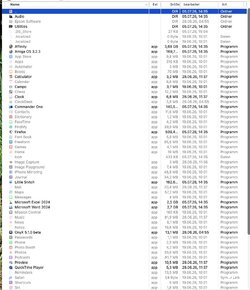
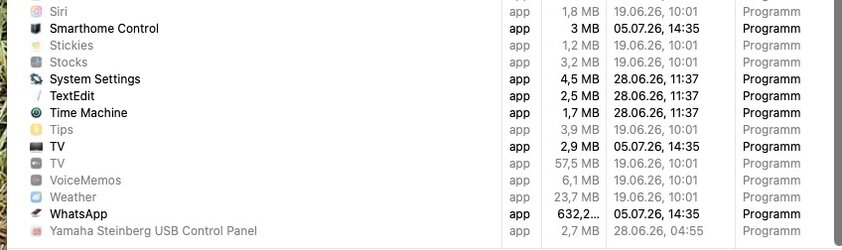
ändert. Und es klappt auch unter Mac OS 27 ( Developer Beta2) ohne Probleme , auch bei den Systemapps:
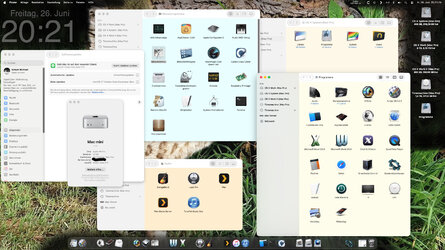
Ist ein einfaches Script:
Dazu nur noch ein Verzeichnis mit den Icons und eins mit den drei Configs.
Eine Config welche Icons geändert werden sollen bei Apps
Eine Config mit Icons die einfach kopiert werden ( wie z.b. Findericon u.s.w. )
Und eine Config welche Bloatware versteckt werden soll.
Hab ich ja schon lange ein Script das mit einem Klick die MacOS Optik nach einem Update wieder aufs gewohnte
ändert. Und es klappt auch unter Mac OS 27 ( Developer Beta2) ohne Probleme , auch bei den Systemapps:
Ist ein einfaches Script:
AppleScript:
--
--  MacOS GUI-script 04.07.2026
--
--
--(c) 2019-2026 [email protected]
--
-------------------------------------------------------------------------------------------------
--csr-util

set csrCheck to do shell script "csrutil status"
set fileLines to paragraphs of csrCheck
repeat with csrCheckStatus in fileLines
    if (csrCheckStatus contains "status: disabled") then
        --status: disabled
    else
        display dialog "Systemprotection must be disabled first!"
        return
    end if
end repeat

set csrCheck to do shell script "csrutil authenticated-root status"
set fileLines to paragraphs of csrCheck
repeat with csrCheckStatus in fileLines
    if (csrCheckStatus contains "status: disabled") then
        --status: disabled
    else
        display dialog "csrutil authenticated-root must be disabled first!"
        return
    end if
end repeat

-------------------------------------------------------------------------------------------------
--admin password

set AdminNamePre to display dialog "Admin Username:" default answer "" with title "Admin Username"
set AdminName to text returned of AdminNamePre as text
set AdminPassPre to display dialog "Password:" default answer "" with title "Admin Password"
set AdminPass to text returned of AdminPassPre as text

-------------------------------------------------------------------------------------------------
--mount system-snapshot

try
    set diskList to do shell script "diskutil list "
    set fileLines to paragraphs of diskList
    set snapshotDiskAll to "Protected systemcontainer not found"
    set snapshotDiskAll2 to ""
    set snapshotDisk to ""
    repeat with diskListDisks in fileLines
        if (diskListDisks contains "com.apple") and (diskListDisks contains "APFS Snapshot") then
            set snapshotDisk to word -1 of diskListDisks
            set snapshotDisk to text 1 thru 7 of snapshotDisk
            set snapshotDisk1 to word -1 of diskListDisks
            set snapshotDisk2 to word -2 of diskListDisks
            set snapshotDisk3 to word -3 of diskListDisks
            set snapshotDisk5 to word -5 of diskListDisks
            set snapshotDiskAll to snapshotDisk5 & " - " & snapshotDisk3 & " - " & snapshotDisk2 & " - " & snapshotDisk1
            try
                set diskList to do shell script "diskutil list "
                set fileLines to paragraphs of diskList
                repeat with diskListDisks in fileLines
                    if diskListDisks contains snapshotDisk then
                        set snapshotDisk to word -1 of diskListDisks
                        set snapshotDisk to text 1 thru 7 of snapshotDisk
                        set snapshotDisk1 to word -1 of diskListDisks
                        set snapshotDisk2 to word -2 of diskListDisks
                        set snapshotDisk3 to word -3 of diskListDisks
                        set snapshotDiskAll2 to "Systemcontainer - " & snapshotDisk3 & " - " & snapshotDisk2 & " - " & snapshotDisk1
                        exit repeat
                    end if
                end repeat
            end try
        end if
    end repeat
end try

tell application "Finder"
    set fileNameTest2 to "/Users/" & AdminName & "/mount/System/Applications/App Store.app"
    set fileNameTest2 to POSIX file fileNameTest2 as string
    try
        set dateiAlias to fileNameTest2 as alias
    on error
        set theResponse to display dialog snapshotDiskAll2 & "
" & snapshotDiskAll & "

Protected systemcontainer:" default answer snapshotDisk with icon note buttons {"Cancel", "Continue"} default button "Continue"
        do shell script "mount -o nobrowse -t apfs /dev/" & (text returned of theResponse) & " /Users/" & AdminName & "/mount" user name AdminName password "" & AdminPass with administrator privileges
    end try
end tell

-------------------------------------------------------------------------------------------------
--hide unwanted

set theFile to "/Users/" & AdminName & "/Documents/Restore/Configs/hide_app.cfg"
set fileContent to read theFile as string
set fileLines to paragraphs of fileContent
repeat with fileName in fileLines
    tell application "Finder"
        set fileNameTest to "/Users/" & AdminName & "/mount/System/Applications/" & fileName
        set fileName to "chflags hidden \"/Users/" & AdminName & "/mount/System/Applications/" & fileName & "\""
        set fileNameTest2 to POSIX file fileNameTest as string
        try
            set dateiAlias to fileNameTest2 as alias
            do shell script fileName user name AdminName password AdminPass with administrator privileges
        on error
            -- ignore error
        end try
    end tell
end repeat

try
    do shell script "rm -rf  /Users/.localized" user name AdminName password AdminPass with administrator privileges
    do shell script "chflags hidden /Users/" & AdminName & "/mount/System/Library/CoreServices/Applications/Feedback\\ Assistant.app" user name AdminName password AdminPass with administrator privileges
on error
    -- ignore error
end try

-------------------------------------------------------------------------------------------------
--change App-icons

use framework "Foundation"
use framework "AppKit"
use scripting additions
set PathU to "/Users/" & AdminName & "/mount/System/Applications/Utilities/"
set PathL to "/Users/" & AdminName & "/mount/System/Library/"
set PathA to "/Users/" & AdminName & "/mount/System/Applications/"
set PathI to "/Users/" & AdminName & "/Documents/Restore/Restore-icons/"

set theFile to "/Users/" & AdminName & "/Documents/Restore/Configs/change_icons.cfg"
set fileContent to read theFile as string
set appIconPairs to paragraphs of fileContent
set variablePaare to {}
repeat with aLine in appIconPairs
    set lineString to aLine as string
    if lineString is not "" then
        set AppleScript's text item delimiters to "<-->"
        set keyValuePair to text items of lineString
        if (count of keyValuePair) is 2 then
            set appName to item 1 of keyValuePair
            set value to item 2 of keyValuePair
            set end of variablePaare to {appName:appName, value:value}
        end if
    end if
end repeat

set AppleScript's text item delimiters to ""
repeat with i from 1 to count of variablePaare
    set appIconPair to item i of variablePaare
    set destPath to (appIconPair's appName)
    set sourcePath to (appIconPair's value)
    set destPath to replace_text((replace_text((replace_text(destPath, "/PathA/", PathA)), "/PathL/", PathL)), "/PathU/", PathU)
    set sourcePath to replace_text(sourcePath, "/PathI/", PathI)
    tell application "Finder"
        set fileNameTest2 to POSIX file destPath as string
        try
            set dateiAlias to fileNameTest2 as alias
            -- original Mod to a+rw
            set filePermissions to do shell script "ls -l " & quoted form of destPath
            set octalPermissions to do shell script "stat -f %A " & quoted form of destPath
            set fileMod to "chmod a+rw \"" & destPath & "\""
            do shell script fileMod user name AdminName password AdminPass with administrator privileges
            -- change Icon
            set imageData to (current application's NSImage's alloc()'s initWithContentsOfFile:sourcePath)
            (current application's NSWorkspace's sharedWorkspace()'s setIcon:imageData forFile:destPath options:2)
            -- a+rw to original Mod
            set fileMod to "chmod " & octalPermissions & " \"" & destPath & "\""
            do shell script fileMod user name AdminName password AdminPass with administrator privileges
            --
        on error
            -- ignore error
        end try
    end tell
end repeat

-------------------------------------------------------------------------------------------------
--copy Icons

set theFile to "/Users/" & AdminName & "/Documents/Restore/Configs/copy_icons.cfg"
set fileContent to read theFile as string
set appIconPairs to paragraphs of fileContent
set variablePaare to {}
repeat with aLine in appIconPairs
    set lineString to aLine as string
    if lineString is not "" then
        set AppleScript's text item delimiters to "<-->"
        set keyValuePair to text items of lineString
        if (count of keyValuePair) is 2 then
            set appName to item 1 of keyValuePair
            set value to item 2 of keyValuePair
            set end of variablePaare to {appName:appName, value:value}
        end if
    end if
end repeat

set AppleScript's text item delimiters to ""
repeat with i from 1 to count of variablePaare
    set appIconPair to item i of variablePaare
    set destPath to (appIconPair's appName)
    set sourcePath to (appIconPair's value)
    set destPath to replace_text((replace_text((replace_text(destPath, "/PathA/", PathA)), "/PathL/", PathL)), "/PathU/", PathU)
    set sourcePath to replace_text(sourcePath, "/PathI/", PathI)
    set searchvar to "*"
    if sourcePath contains searchvar then
        do shell script "cp " & sourcePath & " " & destPath user name AdminName password AdminPass with administrator privileges
    else
        do shell script "cp \"" & sourcePath & "\" \"" & destPath & "\"" user name AdminName password AdminPass with administrator privileges
    end if
end repeat

-------------------------------------------------------------------------------------------------
--Iconcachereset

try
    do shell script "defaults write -g NSSplitViewItemSidebarDefaultsToFloatingAppearance -bool false"
    do shell script "defaults write -g NSConvolutionOverride1 -float 10"
    do shell script "sudo find /private/var/folders/ -name com.apple.dock.iconcache -exec rm {} \\;" user name AdminName password AdminPass with administrator privileges
    do shell script "killall Dock"
on error
    -- ignore error
end try

-------------------------------------------------------------------------------------------------
--umount , write snapshot

tell application "Finder"
    set fileNameTest2 to "/Users/" & AdminName & "/mount/System/Applications/App Store.app"
    set fileNameTest2 to POSIX file fileNameTest2 as string
    try
        set dateiAlias to fileNameTest2 as alias
        do shell script "bless --mount /Users/" & AdminName & "/mount/ --setBoot --create-snapshot" user name AdminName password AdminPass with administrator privileges
        do shell script "umount /Users/" & AdminName & "/mount" user name AdminName password AdminPass with administrator privileges
    on error
        display dialog "MacOS GUI Restore not done

MacOS GUI-script
 ©2019-2026 by [email protected]"
    end try
end tell
display dialog "MacOS GUI Restore done

MacOS GUI-script
 ©2019-2026 by [email protected]"

-------------------------------------------------------------------------------------------------
--functions

on replace_text(this_text, findText, replaceText)
    set this_text to do shell script "sed 's|" & quoted form of findText & "|" & quoted form of replaceText & "|g' <<< " & quoted form of this_text
    return this_text
end replace_text

-------------------------------------------------------------------------------------------------
Dazu nur noch ein Verzeichnis mit den Icons und eins mit den drei Configs.
Eine Config welche Icons geändert werden sollen bei Apps
Eine Config mit Icons die einfach kopiert werden ( wie z.b. Findericon u.s.w. )
Und eine Config welche Bloatware versteckt werden soll.
Zuletzt bearbeitet: